Home/Blog/Firestick Buffering Fix

Trex IPTV Buffering on Firestick: Causes & Fix Slow Streaming

T
Trex IPTV Support
September 2026
14 min read
Verified Guide

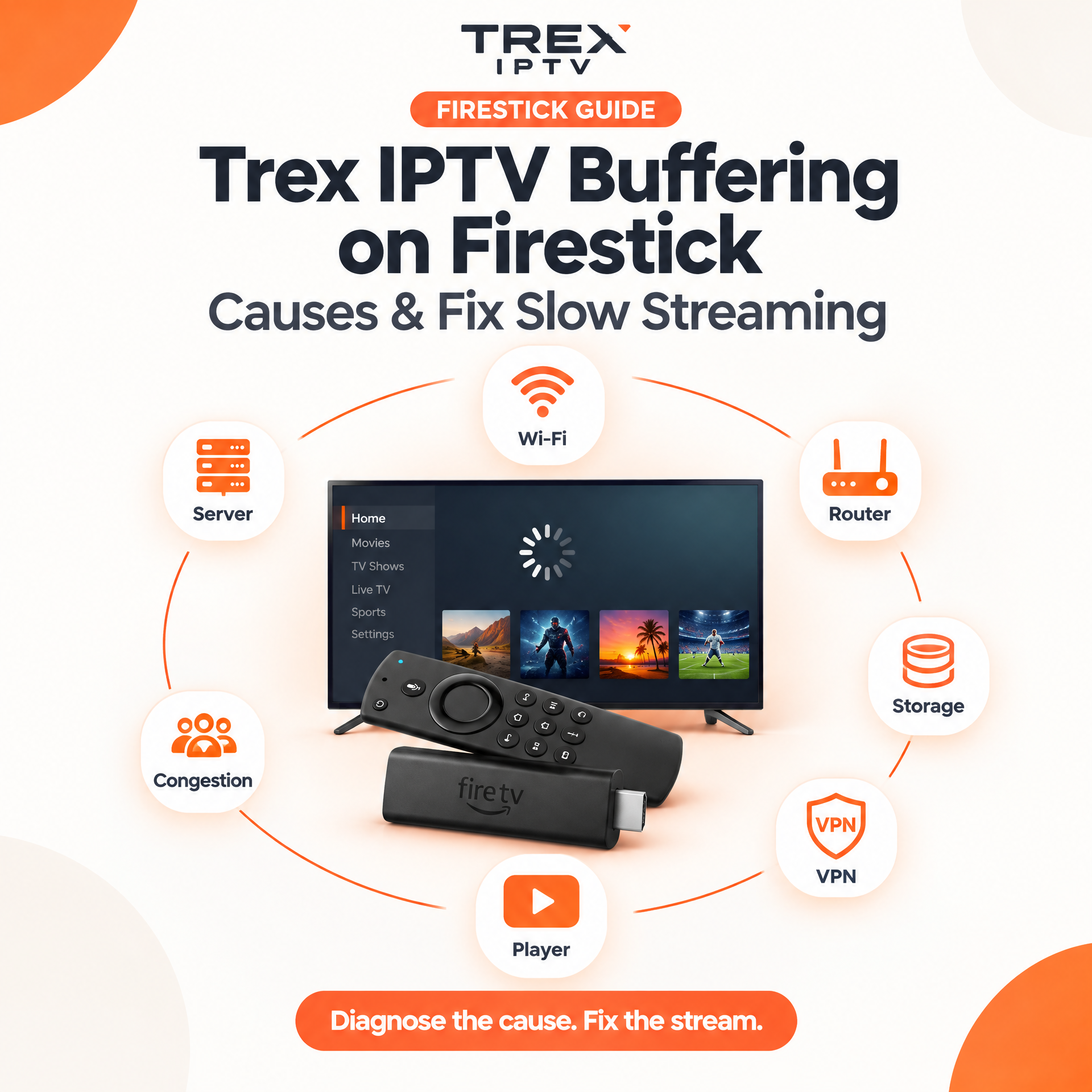
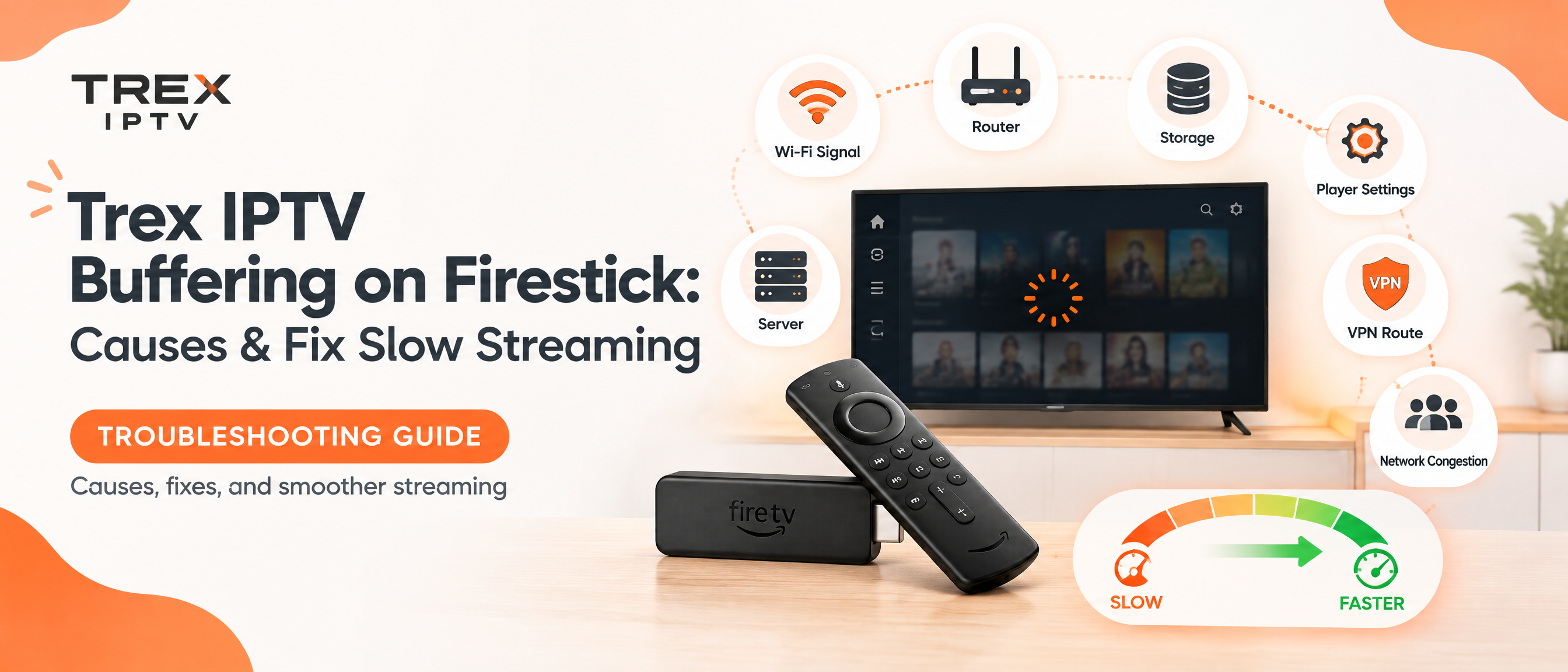
Trex IPTV buffering on Firestick can be frustrating, especially when other streaming apps work normally. A spinning loading circle does not always mean your internet is too slow. The problem can come from Wi-Fi instability, Firestick storage, the IPTV player, VPN routing, network congestion, or the streaming server.

The good news is that you can usually narrow down the cause without changing everything at once. This guide explains why Trex IPTV buffers on Firestick and gives you a practical troubleshooting process, including what to do when buffering happens only at night or during live events. If you still need to install the player, start with the Trex IPTV Fire TV installation guide.

Need the Fire TV install guide instead?
Install Trex IPTV on Firestick step by step
Trex IPTV buffering on Firestick causes and fixes
Quick Answer

What Causes Trex IPTV Buffering on Firestick?

Trex IPTV buffering on Firestick can be caused by an unstable Wi-Fi connection, network congestion, an overloaded Firestick, app cache, VPN routing, IPTV player settings, or server-side congestion. Start by restarting the Firestick and router, testing the connection on the Firestick itself, clearing the IPTV app cache, and checking whether every channel or only specific streams buffer.

?Why Is Trex IPTV Buffering on Firestick?

Trex IPTV buffering means your Firestick is not receiving enough data quickly enough to maintain continuous playback. That can happen at several points between the IPTV server and your television. The main causes include:

Weak or unstable Wi-Fi
Network congestion
IPTV server congestion
Firestick storage or performance problems
IPTV player issues
VPN-related slowdown
Poor routing or high latency
Problems affecting a particular channel or stream
Incorrect player settings
Too many devices using the same network
💡 Amazon's own Fire TV troubleshooting guidance recommends checking the network, restarting the Fire TV device, restarting the modem and router, and using the device's network diagnostics when videos buffer.

🎯First, Find Out Where the Problem Is

Before changing settings, answer one simple question: Is Trex IPTV the only service buffering? Try another legitimate streaming app on the same Firestick.

If everything buffers

  • Wi-Fi
  • Router
  • ISP connection
  • Firestick
  • Network congestion

If only Trex buffers

  • IPTV server performance
  • IPTV player
  • Trex IPTV connection
  • VPN
  • Specific streams
  • Routing

If only 1–2 channels buffer

The problem may be specific to those streams rather than your Firestick.

This simple test can save you from changing settings that were never causing the problem.

Trex IPTV buffering on Firestick troubleshooting guide
Complete Walkthrough

13 Ways to Fix Trex IPTV Buffering on Firestick

01
Step 01

Restart Your Firestick

A restart should be one of the first things you try. Temporary software problems, background processes and memory pressure can sometimes affect playback.

  • Go to your Firestick settings and restart the device.
  • You can also disconnect the Firestick from power for a short period and reconnect it.
  • After restarting, open your IPTV player and test the same channel again.
Tip: Do not change five different settings before testing playback. Make one change at a time so you know what actually helped.
02
Step 02

Restart Your Router

Your router can also become part of the problem. Restarting can help when the network connection has become unstable or when several devices have been connected for a long period.

  • Close the IPTV app.
  • Restart the Firestick.
  • Restart the modem or router.
  • Wait for the internet connection to return.
  • Reconnect the Firestick and test Trex IPTV again.
03
Step 03

Check Your Wi-Fi Connection

A high internet package does not automatically mean your Firestick has a stable connection. Your home internet may be very fast near the router while the Firestick receives a weaker signal behind a television or several walls away.

  • Move the router closer to the Firestick.
  • Remove unnecessary obstacles between the router and Firestick.
  • Use 5 GHz Wi-Fi when it provides a stronger connection at your location.
  • Reduce heavy downloads while watching IPTV.
  • Pause cloud backups temporarily.
  • Disconnect devices that are using significant bandwidth.
  • Restart your router.
Tip: Do not assume that 5 GHz is automatically better in every room. Its performance depends on distance and obstacles.
04
Step 04

Test the Internet on the Firestick Itself

Testing internet speed on your phone is not enough. Your phone may be sitting beside the router while your Firestick is behind the television in another room.

  • Use Amazon Fire TV network diagnostic features to check connection status.
  • On compatible devices, run a speed test from the Firestick itself.
  • If the Firestick connection is unstable, fix the network before changing IPTV player settings.
05
Step 05

Try Ethernet Instead of Wi-Fi

If buffering continues despite a good Wi-Fi signal, Ethernet is worth testing. A wired connection removes many wireless variables, including interference and weak signal strength.

  • Especially useful when the router is close to the TV.
  • Helpful for high-resolution streams.
  • Useful when Wi-Fi becomes unstable during busy periods.
  • Useful when other devices heavily use the wireless network.
Tip: If Ethernet fixes the problem, your IPTV service may not have been the original problem.
06
Step 06

Clear the IPTV Player Cache

An IPTV app can accumulate temporary data over time. Clearing the cache is different from clearing the app's data — clear cache first.

  • Go to Settings → Applications → Manage Installed Applications.
  • Select your IPTV player.
  • Choose Clear Cache.
  • Test playback again after clearing.
Important: Do not immediately choose Clear Data if you do not have your IPTV login details or playlist information available.
07
Step 07

Check Your Firestick Storage

Low available storage can make a Firestick harder to manage. Remove applications you no longer use and delete unnecessary downloaded files.

  • Uninstall unused apps.
  • Delete unnecessary downloaded files.
  • Keep enough free storage for smoother performance.
08
Step 08

Check Whether the Problem Is Your IPTV Player

Sometimes the IPTV service is working but the player is having trouble handling the stream — including live TV, VOD, high-resolution streams, large playlists, EPG loading, or specific video formats.

  • If your Trex IPTV account supports another compatible player, test it.
  • If Player A buffers but Player B plays normally, the issue may be related to the first player.
  • Do not immediately conclude that one player is universally better.
Tip: Reinstall or reconfigure your player using the Trex IPTV Fire TV installation guide if the app itself looks corrupted. Also compare login methods in the M3U vs Xtream Codes guide.
09
Step 09

Trex IPTV Buffering Only at Night

If Trex IPTV works normally during the afternoon but starts buffering between roughly 7 PM and 11 PM, do not automatically blame your Firestick.

  • Higher demand on the IPTV service
  • Network congestion
  • More traffic on your local connection
  • ISP routing issues
  • VPN congestion
  • A particular server becoming overloaded
Tip: If Netflix, YouTube and other streaming services work normally while several Trex channels buffer at the same time, the issue is less likely to be simple Firestick Wi-Fi failure.
10
Step 10

What If Only Live Sports Buffer?

Live events can create a different situation from ordinary TV programmes. If buffering happens mainly during popular live events but normal channels work at other times, server-side demand or network congestion may be involved.

  • Internet speed alone does not prove that your streaming path is healthy.
  • Wi-Fi, provider congestion, VPN congestion and network latency can all contribute.
  • Test another channel, another network or another compatible player.
11
Step 11

Should You Change the Buffer Size?

Some IPTV players provide buffer-size settings. A larger buffer can sometimes help with short network interruptions because the player has more data available before playback catches up.

  • Increasing the buffer is not a cure for a severely unstable connection.
  • If a stream is consistently failing to deliver enough data, a larger buffer will not fix the underlying problem.
  • Use buffer settings as a testing option after checking your network and player.
12
Step 12

Should You Use a VPN for Trex IPTV Buffering?

A VPN can sometimes change the network route between your Firestick and a streaming service. That can help in certain routing situations, but it can also make streaming slower if the VPN server is congested or far away.

  • Do not assume a VPN will automatically fix IPTV buffering.
  • If you already use one, test playback with and without it where legally and technically appropriate.
  • Compare the results rather than relying on claims that a VPN always improves IPTV.
13
Step 13

Check for Too Many Connections

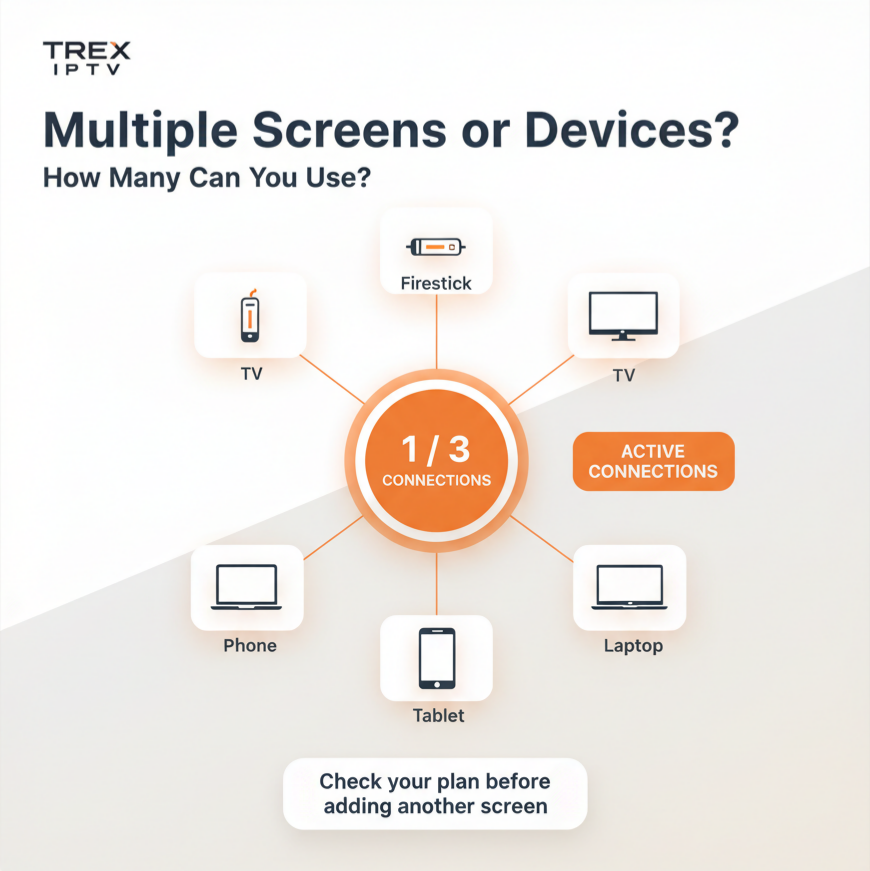
Some IPTV subscriptions limit the number of simultaneous connections. If the same account is being used on multiple devices, another active session could affect access depending on the service's rules.

  • Check another Firestick, Smart TV, phone, tablet, computer, or IPTV player.
  • Close unnecessary sessions and test again.
  • Confirm the allowed number of simultaneous streams with your provider.

Trex IPTV Buffering Troubleshooting Table

SymptomLikely AreaFirst Action
Everything buffersWi-Fi or internetTest Firestick connection
Only Trex buffersService, player or routingTest another player
One channel buffersSpecific streamTry another channel
Buffers only at nightCongestion or server loadTest at different times
Live events bufferTraffic or server capacityTest another stream
IPTV buffers after long useApp/deviceRestart and clear cache
EPG loads slowlyPlayer or EPG sourceRefresh EPG
VPN causes freezingVPN route/serverTest without VPN
Wi-Fi is unstableWireless connectionTest Ethernet
M3U loads slowlyLarge playlistReduce unnecessary content

If the symptom is a blank TV guide rather than freezing video, switch to our Trex IPTV EPG not working fix guide. Unsure whether M3U or Xtream Codes is contributing? See the Trex IPTV M3U vs Xtream Codes comparison.

How to Fix Trex IPTV Buffering on Firestick: Step-by-Step

If you want the fastest troubleshooting process, follow these steps in order.

  1. 1
    Restart the Firestick

    Restart the device and test playback.

  2. 2
    Restart the Router

    Restart your modem/router and reconnect the Firestick.

  3. 3
    Test the Firestick Connection

    Do not rely only on a phone speed test.

  4. 4
    Test Another Channel

    Find out whether the problem affects one stream or many.

  5. 5
    Test Another Streaming App

    Separate an IPTV problem from a general Firestick network problem.

  6. 6
    Clear the IPTV Player Cache

    Clear cache without immediately clearing app data.

  7. 7
    Reduce Network Traffic

    Pause downloads, backups and unnecessary streaming.

  8. 8
    Try Ethernet

    If possible, test the Firestick with a wired connection.

  9. 9
    Test Your VPN

    Compare performance with different servers or without it, where appropriate.

  10. 10
    Contact the Provider

    If several channels consistently buffer while other streaming services work normally, share useful details with support.

When contacting support, tell them:

Device model
IPTV player
Approximate time of buffering
Whether all channels are affected
Whether VOD is affected
Whether other streaming apps work
Whether you tested another network

Practical Example

Imagine Trex IPTV works perfectly at 2 PM but starts buffering every few seconds at 9 PM. You run a speed test on your phone and get excellent results. Instead of immediately buying a new Firestick, test the problem systematically.

First, check another streaming service on the Firestick. If it works normally, test several Trex channels. If many Trex channels buffer while other services work, the problem may be outside the Firestick.

Now test Trex IPTV on another compatible device using the same network. If it also buffers, the evidence points away from the Firestick itself. This process is much more useful than repeatedly restarting the same app without identifying where the bottleneck is.

Common Mistakes When Fixing IPTV Buffering

1. Looking Only at Download Speed

A high speed number does not guarantee stable streaming. Latency, packet loss, Wi-Fi quality and server response can also matter.

2. Changing Every Setting at Once

If you change DNS, VPN, buffer size, resolution, Wi-Fi and the IPTV player together, you will not know which change helped.

3. Clearing App Data Too Quickly

Clear cache first. Clearing data can remove stored application information.

4. Assuming the Firestick Is Always the Problem

If several Trex streams buffer but other streaming services work normally, investigate the player, network route and service as well.

5. Assuming a VPN Always Fixes Buffering

A VPN can change your route, but a congested VPN server can also make streaming worse.

6. Ignoring the Time of Day

If buffering happens consistently during peak hours, record the times. That information can help identify whether congestion is involved.

When Should You Replace Your Firestick?

Do not replace your Firestick simply because Trex IPTV buffers.

First test another streaming service, another IPTV player, another network, Ethernet if available, app cache, device restart, and different channels.

If the Firestick struggles with multiple legitimate streaming services, frequently crashes, runs extremely slowly, or has broader performance problems, hardware may deserve investigation. But if only one IPTV service or a small group of streams has problems, replacing the device may not solve the real issue.

Quick Firestick Buffering Checklist

Before contacting support, check:

Firestick restarted
Router restarted
Firestick Wi-Fi tested
Other streaming apps tested
Multiple IPTV channels tested
IPTV app cache cleared
Unused apps removed
Network traffic reduced
5 GHz Wi-Fi tested where suitable
Ethernet tested if available
VPN tested separately
Buffering times recorded
Multiple devices checked
Subscription connection limits checked

Key Takeaways

Trex IPTV buffering on Firestick does not always mean slow internet.
Wi-Fi stability can matter more than your advertised internet package.
Test the Firestick connection itself rather than relying only on your phone.
Clear the IPTV player's cache before clearing its data.
Ethernet is useful for diagnosing Wi-Fi-related problems.
Buffering that happens only during certain hours may point towards congestion.
VPNs can either help or hurt depending on the route and server.
If only specific channels buffer, the problem may be stream-specific.
Testing another player can help identify whether the application is responsible.
Do not replace your Firestick until you have ruled out network, player and service issues.

?FAQs

Still stuck with buffering? These answers cover the most common Firestick questions.

Keep Learning
Browse all IPTV guides

Still Experiencing Buffering?

Check your Trex IPTV account and connection details, then test the service again using the troubleshooting steps above. If the issue continues across multiple channels, contact Trex IPTV support with the device, player, time and channel information so the problem can be investigated more efficiently.

Only access IPTV services and content you are legally authorised to use in your location. Explore more help articles in the Trex IPTV blog hub.

Chat with us