Trex IPTV EPG Not Working: Causes & How to Fix in Minutes?
T
Trex IPTV Support
September 2026
13 min read
Verified Guide
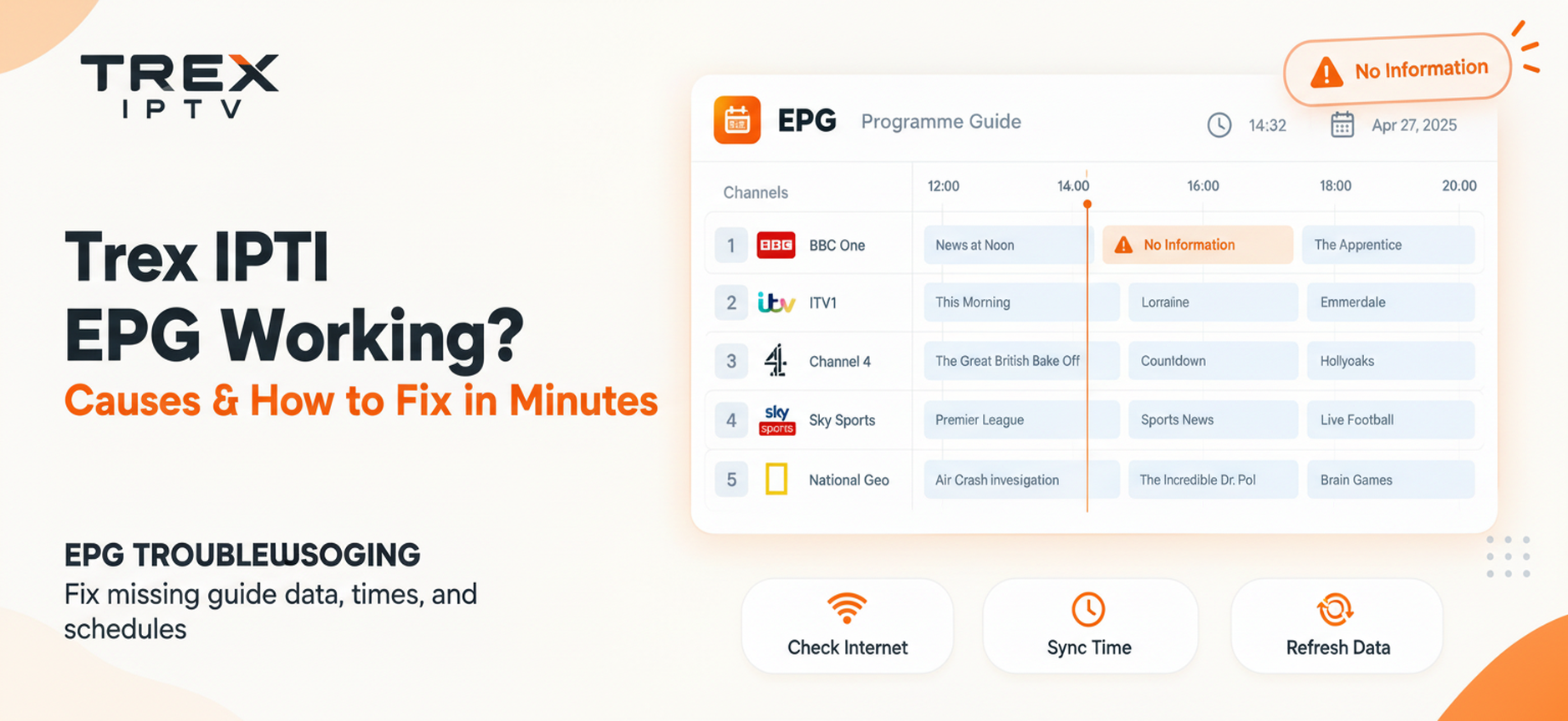
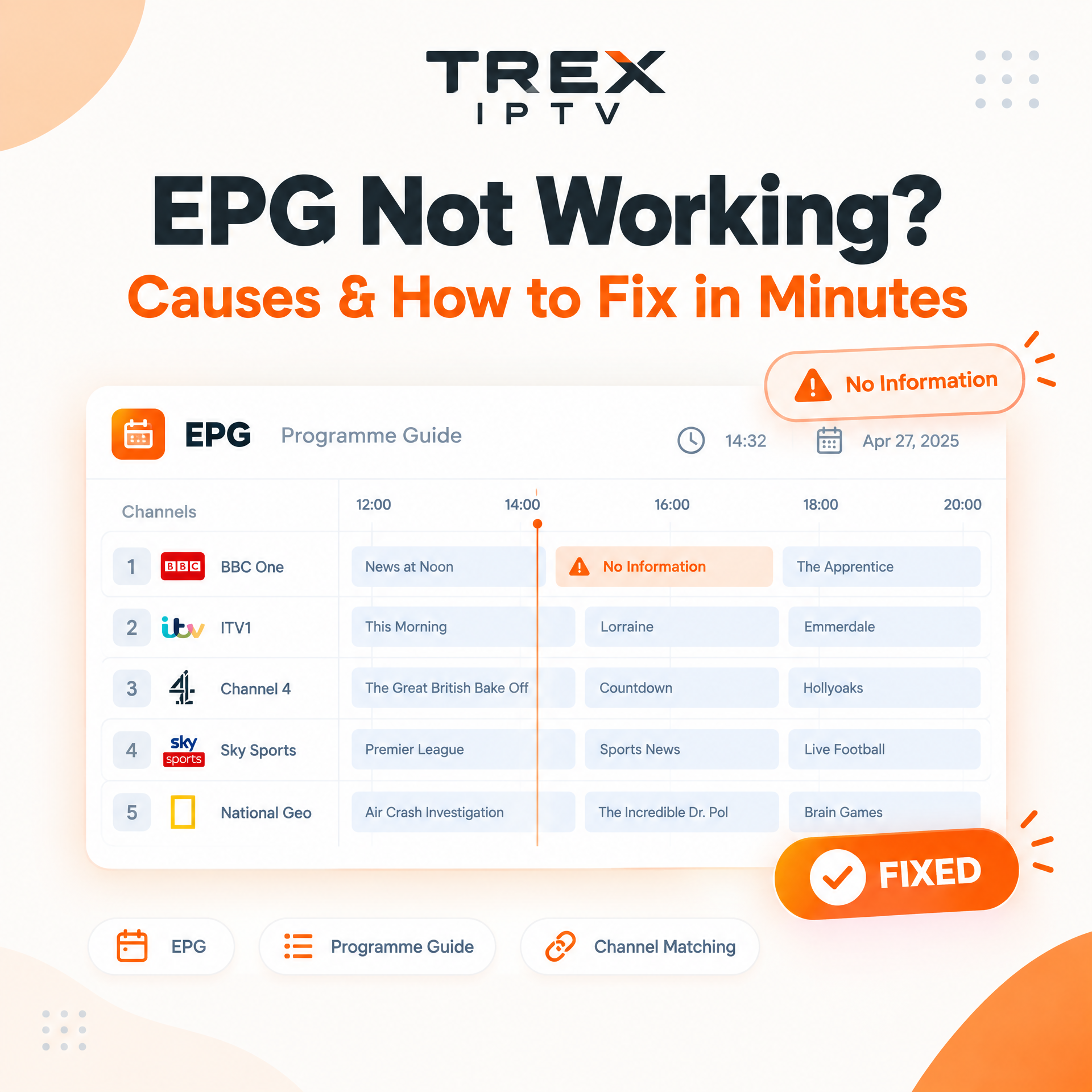
Trex IPTV EPG problems can be confusing because your channels may continue playing normally while the TV guide shows "No Information", missing programmes, wrong times, or an incomplete schedule.
EPG means Electronic Program Guide. It provides programme names, schedules, descriptions, and other guide information inside your IPTV player. When Trex IPTV EPG stops working, the problem may come from the provider's EPG data, TiviMate or another IPTV player, channel matching, your device settings, or a temporary EPG outage. This guide shows you how to identify the cause and fix the problem step by step. If the player is not installed yet, use the Fire TV Trex IPTV setup guide.
If Trex IPTV EPG is not working, first refresh the EPG from your IPTV player's settings and check whether the update completes successfully. Then check your playlist-to-EPG assignment, device time zone, cache, VPN, and EPG source. If the channels work but EPG is missing on multiple devices, the issue may be with the provider's EPG data rather than your Firestick or IPTV player.
📺What Is an EPG?
An Electronic Program Guide, or EPG, is the TV guide displayed by an IPTV player. Instead of seeing only channel names, an EPG can show:
Current programme
Next programme
Programme schedule
Start and end times
Programme descriptions
Sports or event information
Channel guide data
For example, instead of seeing ESPN HD, your IPTV player may show:
ESPN HD | Live Football | 8:00 PM to 10:30 PM
The channel stream and EPG are related, but they are not the same thing. This is why a channel can work perfectly while its EPG shows "No Information."
?Why Is Trex IPTV EPG Not Working?
There are several possible causes. The most common are:
Trex EPG data is temporarily unavailable
The EPG has not been refreshed
The EPG update failed
Channels are not correctly matched with EPG data
The wrong EPG source is assigned
Your device time or time zone is incorrect
Your IPTV player has a cache or synchronisation problem
A VPN is interfering with the EPG connection
An external EPG source is unavailable
The provider's EPG data contains incorrect or incomplete information
💡 The most important point is that you should identify which type of EPG problem you have before changing settings.
Trex IPTV Channels Work but EPG Says "No Information"
This is one of the most common situations. If you can watch your channels but the programme guide says "No Information", your actual video connection may be working correctly. The problem is specifically related to guide data.
What should you do first?
Refresh the EPG. If the update completes successfully and the guide remains empty, continue with the troubleshooting steps below. Do not immediately delete your entire playlist.
How to Refresh Trex IPTV EPG
The exact menu names depend on your IPTV player, but the general process is similar. In TiviMate, for example, go to the EPG section and manually start an EPG update. After starting the update:
Wait for the update to complete.
Check the update status.
Return to the TV guide.
Check several channels.
Give the player some time to process the data.
Do not repeatedly force updates. If an EPG source is temporarily unavailable, repeatedly pressing Update will not necessarily fix it. Allow the player time to finish the update and then test again.
Check Whether the EPG Update Actually Succeeded
A common mistake is assuming that because the playlist loaded, the EPG also loaded. They are separate processes.
Playlist
Working
EPG
Failed or 0 channels updated
If your player provides an EPG update status, check it. If the EPG update itself fails, focus on the EPG source or connection rather than changing channel settings.
Check Your EPG Source & Channel Matching
An EPG source provides the programme information used by your IPTV player. Depending on your IPTV setup, the source may be:
Provider-supplied EPG
XMLTV source
External EPG source
Automatically assigned EPG
Manually assigned EPG
If the provider's EPG source is unavailable, the guide may stop updating even though the channels continue working. You can wait for the provider's EPG to return, or use a compatible alternative EPG source if your IPTV player and service allow it (which may require manual channel matching).
Check Channel Matching
Channel matching tells your IPTV player which EPG entry belongs to each channel. For example, your channel CNN HD may need to match EPG entry CNN USA. If the channel ID or name does not match correctly, you may get "No Information" even when the EPG source itself is working.
Different channel names
Regional versions
Duplicate channels
Different channel IDs
Provider playlist changes
Edited playlists
Incorrect EPG assignments
Why Are Some Channels Showing EPG but Others Are Not?
If some channels have programme information and others show "No Information," the entire EPG system may not be down. The problem may be limited to specific channels.
Channel
Video
EPG
Channel A
Working
Working
Channel B
Working
Working
Channel C
Working
No Information
Channel D
Working
No Information
Channel E
Working
Working
This pattern points towards a channel mapping or EPG-data issue rather than a complete EPG outage. If the same channels are missing across different devices and players, contact the provider and report the exact channels.
Trex IPTV EPG Not Working on TiviMate
TiviMate is one of the players where users frequently troubleshoot EPG issues. If Trex channels work but the guide does not, try this sequence:
1
Open TiviMate
Go to the application's EPG settings.
2
Check the EPG source
Make sure the expected EPG source is enabled.
3
Run an EPG update
Start a manual update.
4
Check the result
Look for the update status or number of channels updated.
5
Restart TiviMate
Close or force-stop the application and reopen it.
6
Clear cache
Clear the TiviMate cache rather than immediately clearing its data.
7
Test the guide again
Check several channels instead of only one.
Clear TiviMate Cache on Firestick
If the EPG was previously working and suddenly stopped, clearing the app cache is worth trying. On Fire TV:
Settings → Applications → Manage Installed Applications → Select your IPTV player → Clear Cache
Should you clear app data? Not as your first step. Clearing app data can remove stored application information. Try Clear Cache → Restart App → Test EPG before considering Clear Data.
Time Zone, VPN & Provider-Side Outages
Check Your Firestick Date and Time
Incorrect device time can cause EPG schedules to appear at the wrong time — one hour ahead, one hour behind, several hours wrong, or showing programmes at unusual times. Check your Firestick's date, time and time zone first. If the device time is incorrect, fix that before changing EPG offsets.
If programme names appear but the times are wrong, check device time, device time zone, IPTV player time settings, EPG offset, and provider EPG data. If only a few channels are wrong while others are correct, the problem may be with those channels' EPG data rather than your global time setting.
Can a VPN Cause EPG Problems?
Yes, a VPN can sometimes affect EPG updates because it changes the network route. This does not mean VPNs always cause EPG problems. A simple test:
Close your IPTV player.
Temporarily test the EPG without the VPN, where appropriate and legal.
Open the IPTV player and run an EPG update.
Compare the result.
Trex IPTV EPG Down for Everyone
Sometimes there is nothing wrong with your Firestick — the provider's EPG may simply be unavailable. Look for these patterns:
Channels play normally
EPG is missing on multiple channels
Several devices have the same problem
Different IPTV players show the same missing guide
Refreshing the EPG does not restore data
The problem starts suddenly after previously working
EPG works on another player
Investigate TiviMate settings, cache, channel matching or compatibility.
EPG fails everywhere
The issue is more likely related to the EPG source or provider data.
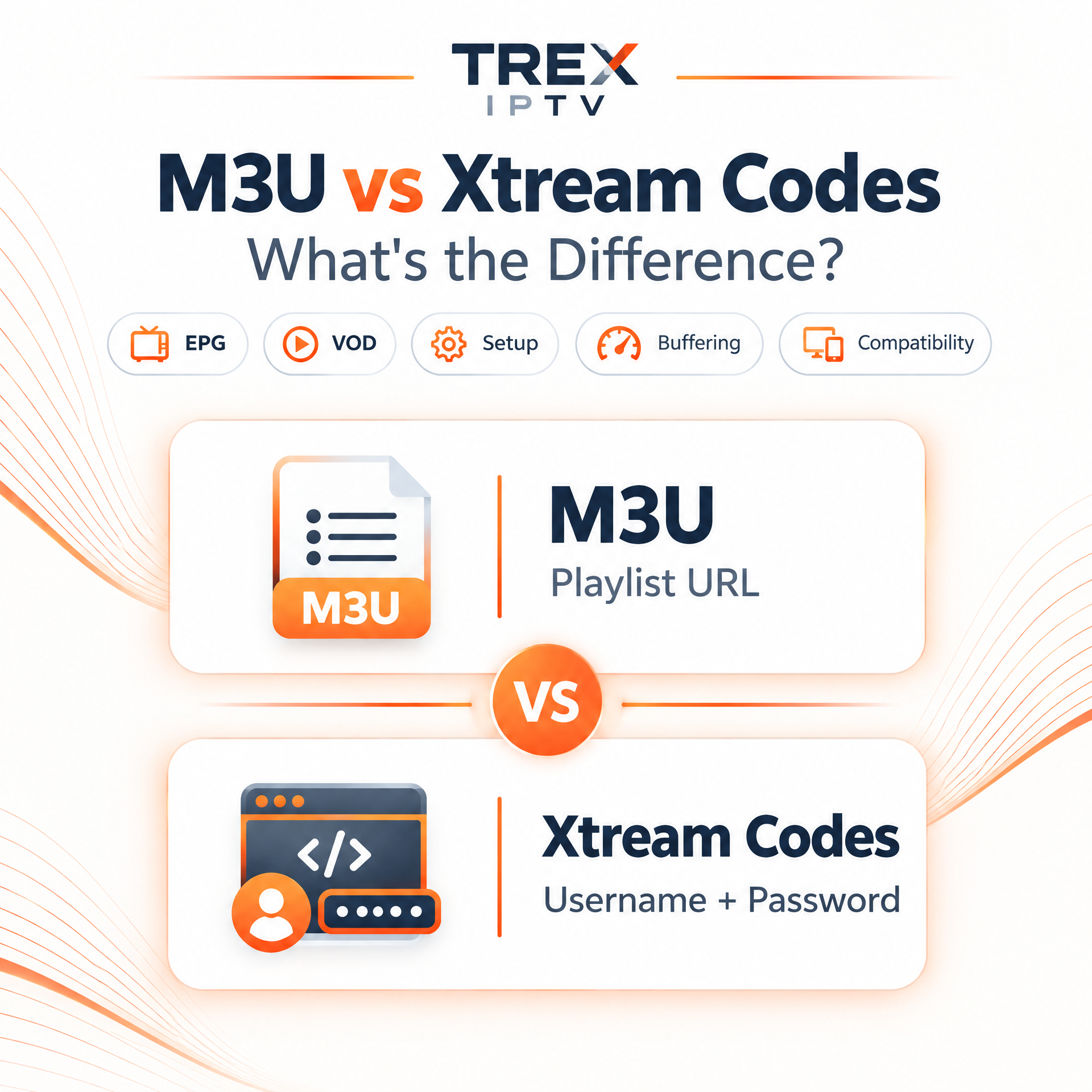
Your connection method (M3U vs Xtream Codes) can affect how the IPTV player receives information, but changing methods is not a guaranteed EPG fix. First check whether the EPG source itself is available.
Regional channel matching can also be harder — for example CNN USA vs CNN Canada. If only regional channels are affected, investigate channel mapping before assuming the complete EPG is broken.
Trex IPTV EPG Troubleshooting Table
Problem
Possible Cause
What to Try
All channels say No Information
Provider EPG or source issue
Refresh and test another device
Some channels have EPG
Channel matching
Check individual mappings
EPG update fails
Source/network problem
Check source and connection
EPG times are wrong
Time zone or offset
Check device time
EPG stopped suddenly
Temporary outage
Check provider status
EPG works in another player
Player issue
Clear cache and check settings
EPG fails everywhere
Provider/source issue
Contact provider
EPG fails with VPN
Network route
Test without VPN
Playlist works but EPG fails
Separate EPG issue
Check EPG source
EPG appears one hour behind
Time settings
Check time zone and offset
How to Fix Trex IPTV EPG Not Working: Best Order
Follow this order instead of changing everything at once.
1
Refresh the EPG
Run a manual EPG update.
2
Check the Update Status
Make sure the update actually completes.
3
Test Multiple Channels
See whether the problem affects all channels or only some.
4
Check Device Time
Confirm the correct date, time and time zone.
5
Restart Your IPTV Player
Close it completely and reopen it.
6
Clear the App Cache
Clear cache from Firestick's application settings.
7
Restart the Firestick
Amazon recommends restarting Fire TV as a basic troubleshooting step.
8
Test Without VPN
If you use a VPN, compare the EPG update with and without it where appropriate.
9
Test Another Player
This helps determine whether the problem is player-specific.
10
Contact Trex Support
If the EPG remains unavailable across multiple devices or players, provide details to your provider.
Practical Example
Imagine your Trex IPTV channels are playing normally on Firestick. At 8 PM, you open the guide, and every channel says "No Information." You refresh the EPG, but nothing changes. You check the Firestick time and restart TiviMate — still blank. You test the same account on another compatible device and see the same result.
At this point, repeatedly clearing your Firestick is unlikely to be useful. The same EPG problem across devices suggests you should investigate the provider's EPG source or wait for the provider to restore the guide.
Common Mistakes When Fixing Trex EPG
1. Deleting the Playlist Immediately
If the channels are working, deleting and rebuilding the playlist may not solve an EPG-source problem.
2. Assuming the IPTV Player Is Broken
If the same EPG is missing on several devices, investigate the provider side too.
3. Changing Time Offset Randomly
Check the device time and time zone first.
4. Refreshing the EPG Repeatedly
If the source is unavailable, repeated refreshes will not necessarily restore it.
5. Using Random EPG Sources
An external EPG may not match your channels correctly and can create more missing or incorrect listings.
6. Sharing Your IPTV Credentials
Do not post your M3U URL, Xtream username, password or other account information in public forums while asking for help.
Action Checklist
Before contacting support, check:
Channels themselves are playing
EPG has been manually refreshed
EPG update completed successfully
Multiple channels tested
Firestick time checked
Time zone checked
IPTV player restarted
IPTV player cache cleared
Firestick restarted
VPN tested separately
Another compatible player tested
Another device tested
Affected channels recorded
EPG problem time recorded
Key Takeaways
EPG and IPTV video streams are separate.
Your channels can work even when the EPG is unavailable.
"No Information" usually means guide data is missing, unavailable or incorrectly matched.
Refresh the EPG before rebuilding your entire playlist.
Check your device time if programme times are incorrect.
Clear the IPTV player's cache if the problem is player-specific.
VPN routing can sometimes affect EPG updates.
If the same EPG problem appears across several devices, investigate the provider or EPG source.
Some channels may have incorrect EPG while others work normally.
Temporary EPG outages do occur, so not every EPG problem can be fixed locally.
?FAQs
Still seeing "No Information" in your guide? These answers cover the most common EPG questions.
Step-by-step tutorial to install Trex IPTV on Amazon Fire TV, Firestick 4K & Cube in under 5 minutes. Includes Downloader code, recommended players, and best streaming settings.
If Trex IPTV channels are working but the guide is missing, start with the troubleshooting steps above before changing your entire IPTV setup. Check the EPG update status, refresh the guide, verify your Firestick time, and test another device or player. You can also browse the full Trex IPTV blog or review current Trex IPTV subscription plans.
If the same problem continues everywhere, contact our Trex IPTV support team and report the exact channels and time when the EPG stopped working. Only access IPTV services and content you are legally authorised to use in your location.