Home/Blog/Fire TV Setup Guide

How to Install Trex IPTV on Fire TV in 3 Minutes: Easy Guide

T
Trex IPTV Support
March 2026
3 min read
Verified Tutorial

If you want to watch Trex IPTV on your Amazon Fire TV, you are in the right place. This guide covers everything to install Trex IPTV from start to finish in simple, easy steps. Users need no technical experience, and the whole setup takes under 5 minutes. By the end of this guide, you will have your complete Trex IPTV channel library up and running on your Fire TV in full 4K quality.

Need an active account first? Compare Trex IPTV subscription plans before you install. Prefer another device? See the full Trex IPTV installation guide for every device.

Need setup instructions for Android, Smart TV, iOS, or PC?
Open multi-device installation guide
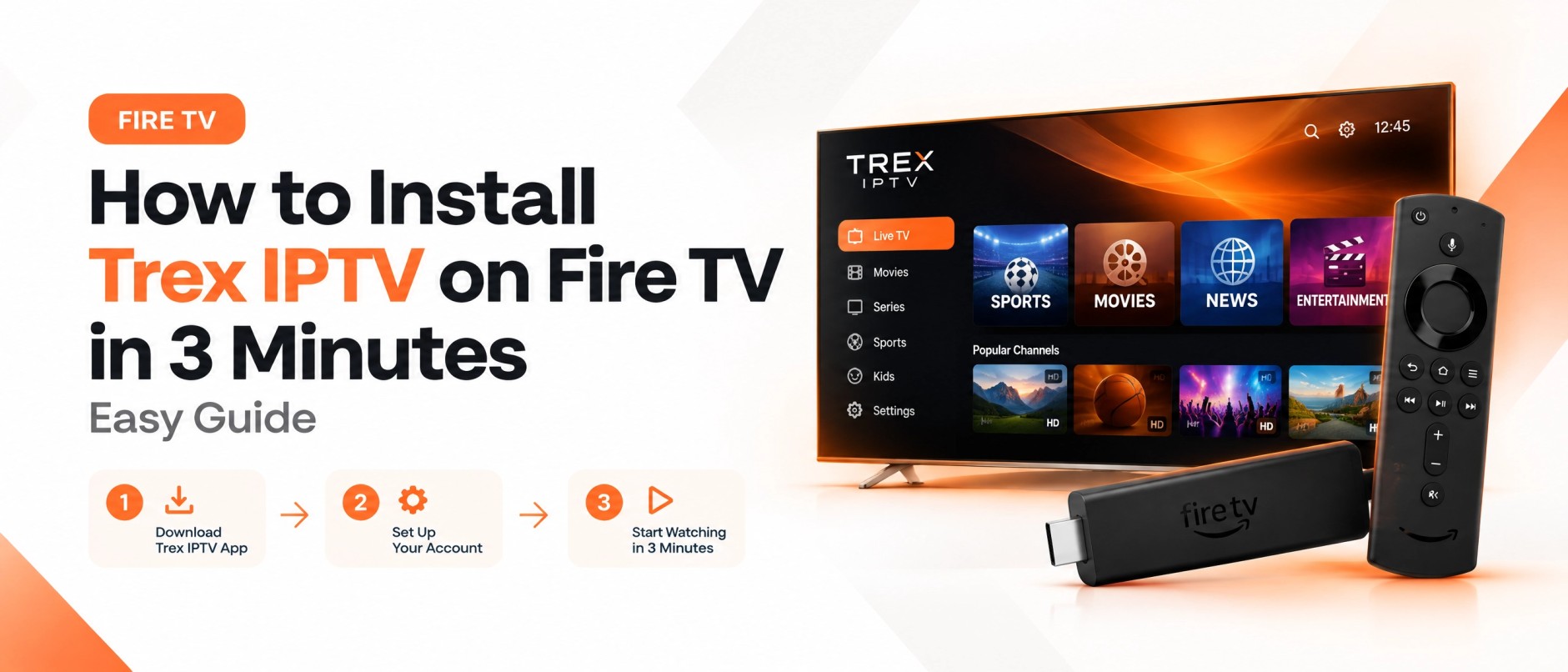
How to Install Trex IPTV on Amazon Fire TV

✓What You Need Before You Start

Before installing Trex IPTV, make sure you have the following ready:

Active Trex IPTV Subscription

1, 3, 6, or 12-month active plan.

Login Credentials

Your username, password, and server URL.

Amazon Fire TV or Firestick Device

Plugged into HDMI and powered on.

Stable Internet Connection

At least 10 Mbps for HD or 25 Mbps for 4K streams.

Your credentials are automatically delivered via WhatsApp or email right after your subscription is confirmed.

📺Is Trex IPTV Compatible With Fire TV?

Yes. Trex IPTV works perfectly on every Amazon Fire TV and Firestick model, including:

Amazon Firestick 4K
Amazon Firestick 4K Max
Amazon Fire TV Stick Lite
Amazon Fire TV Cube
Fire TV Edition Smart TVs
All older Firestick & Fire TV models
Complete Walkthrough

Step-by-Step Guide to Install Trex IPTV on Fire TV

01
Step 01

Enable Apps From Unknown Sources

Before installing any IPTV player, you need to allow apps from outside the Amazon App Store.

  • Press the Home button on your Fire TV remote.
  • Go to Settings (gear icon on the right).
  • Select My Fire TV (or Device & Software).
  • Tap Developer Options.
  • Turn on Apps from Unknown Sources.
  • Turn on ADB Debugging as well for extra compatibility.
Why this matters:This setting allows you to sideload IPTV player apps that are not available directly in the Amazon Appstore.
02
Step 02

Download the Downloader App

The Downloader app is the essential tool used to install IPTV players on your Fire TV.

  • Press Home on your remote and go to Find / Search at the top.
  • Type Downloader in the search bar.
  • Select the orange Downloader app icon from the search results.
  • Click Download (or Get) and wait for it to install.
  • Open the app once installation completes.
03
Step 03

Enable Downloader Permissions

Give Downloader administrative permission to sideload applications onto Fire TV OS.

  • Go back to Fire TV Settings.
  • Select My Fire TV > Developer Options.
  • Find Install Unknown Apps (or Downloader in the app list).
  • Turn its permission to ON.
04
Step 04

Open Downloader and Enter the Code

Now it is time to download your IPTV player APK directly.

  • Open the Downloader app from your home screen or apps list.
  • Select the URL or Code input bar at the top.
  • Enter the Trex IPTV Downloader Code: 686147
  • Click Go and wait for the APK file to download completely.
Trex IPTV Downloader Code
686147

Note: You can also enter the full APK download URL we send you via WhatsApp or email after your Trex IPTV subscription is confirmed.

05
Step 05

Install the IPTV Player

Once the APK file finishes downloading, the installation screen appears automatically.

  • Tap Install on the prompt that appears in the bottom right corner.
  • Wait a few seconds for the installation progress bar to finish.
  • Tap Done or Open once it finishes (you can delete the APK file afterwards to save storage space).
06
Step 06

Open the IPTV Player App

Now launch the newly installed IPTV player on your Fire TV.

  • Press the Home button on your remote.
  • Scroll right to find Your Apps and Channels.
  • Find the IPTV player you just installed and launch it.
Tip: Long-press the Home button and select Apps to open your full app list instantly.
07
Step 07

Select Your Login Method

Inside the IPTV player, choose how to connect your Trex IPTV account.

  • Tap Add New User, Add Playlist, or Login.
  • Select Xtream Codes API from the available options.
  • This is the recommended and most stable login method for Trex IPTV on Fire TV.
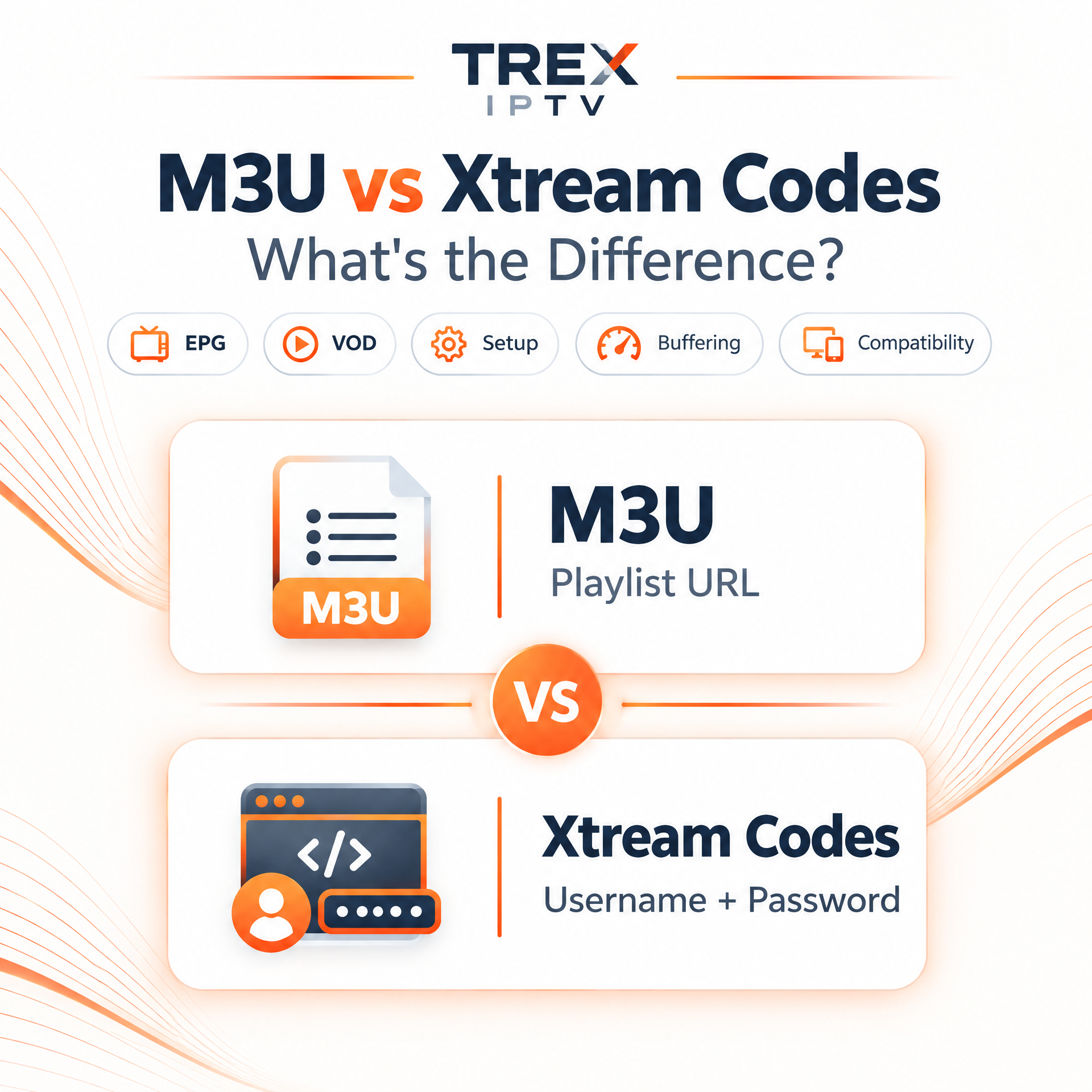
Why Xtream Codes:It loads significantly faster, supports full VOD metadata and poster browsing, and gives you a much more stable streaming experience than M3U on Fire TV.

Still unsure which login method to use? Compare Trex IPTV M3U vs Xtream Codes.

08
Step 08

Enter Your Trex IPTV Login Credentials

Connect your active Trex IPTV account to the IPTV player.

  • Enter Any Name in the playlist name field (e.g., Trex IPTV).
  • Enter your Username exactly as received.
  • Enter your Password exactly as received.
  • Enter your Server URL exactly as received.
  • Double-check that there are no extra spaces in any field.
  • Tap Add User or Connect to proceed.
Important tip:Copy and paste your credentials directly from your WhatsApp or email confirmation message instead of typing them manually to avoid typos or capitalization errors.
09
Step 09

Wait for Your Channel List to Load

Once connected, your complete Trex IPTV library syncs automatically.

  • Live channels load within 10 to 20 seconds.
  • VOD movies and TV series appear shortly after.
  • EPG TV Guide syncs within 30 to 60 seconds.
  • All channel categories organize themselves automatically in the player.
10
Step 10

Start Streaming on Fire TV

Your Trex IPTV service is now fully set up on your Fire TV device!

  • Browse your live channel list by category or country.
  • Search for any movie or series in the massive on-demand VOD library.
  • Use the electronic TV guide (EPG) to see what is currently airing.
  • Enjoy streaming in crystal-clear HD, UHD, and 4K quality instantly.

How to Add Trex IPTV to Fire TV Home Screen

To make it easier to launch Trex IPTV every time, follow these quick steps:

  1. 1Press and hold the Home button on your remote.
  2. 2Go to Manage Your Apps and Channels.
  3. 3Find your IPTV player app and press the Options button (three horizontal lines).
  4. 4Select Move to Front. It will now appear on your Fire TV home bar for 1-click access!

⚙️Best Settings for Trex IPTV on Fire TV

To get the best possible streaming experience on Fire TV, apply these recommended settings:

Video Quality

  • • Set stream quality to Auto for the smoothest experience.
  • • Switch to 1080p manually if buffering occurs on heavy 4K streams.

Connection

  • • Always use Ethernet over Wi-Fi when possible.
  • • If using Wi-Fi, connect to the 5 GHz band for faster and stabler speeds.

EPG Guide

  • • Set EPG refresh to every 24 hours inside your player settings.
  • • Keeps your TV guide updated without slowing the app down during startup.

Buffer Size

  • • Increase buffer size inside player settings (Small / Normal → Large).
  • • Provides extra headroom against packet drops and eliminates freezing on live sports.

🔧Troubleshooting Trex IPTV on Fire TV

Encountering any issues? Here are the official solutions for common Fire TV streaming questions:

Keep Learning
Browse all IPTV guides

Final Thoughts

Installing Trex IPTV on Fire TV is one of the quickest and most straightforward setups available. Once you have your credentials ready, the whole process takes under 5 minutes, and you are watching in full 4K quality on your big screen.

If you face any issues at any point, our support team is available 24 hours a day on WhatsApp. You will get guidance for every step in real time at no extra cost. You can also contact the Trex IPTV support team or browse more help articles in the Trex IPTV blog.

Chat with us