Home/Blog/15 Buffering Fixes

Trex IPTV Keeps Buffering? 15 Ways to Fix Trex IPTV Buffering

T
Trex IPTV Support
September 2026
12 min read
Verified Guide

Trex IPTV buffering can be frustrating, especially when a channel plays for a few seconds and then freezes. The problem can happen on Firestick, Android TV, Smart TV, mobile devices, or IPTV players such as TiviMate.

The important thing is to identify where the problem is coming from. Buffering can be caused by weak Wi-Fi, network congestion, device performance, an IPTV player, VPN routing, a particular channel source, or the IPTV server itself. For Firestick-specific steps, also see our Trex IPTV buffering on Firestick guide.

Second screen freezing? It may be a connection limit.
Check Trex IPTV multiple screens guide
Trex IPTV keeps buffering 15 ways to fix
Quick Answer

Why Does Trex IPTV Keep Buffering?

Start with the simplest tests before changing advanced settings. Trex IPTV may keep buffering for many local and service-side reasons — work through the list below in order.

Unstable Wi-Fi
Network congestion
High latency or packet loss
Too many devices using the network
Firestick or Android TV performance
Outdated IPTV player
Large app cache
VPN routing
A specific channel or stream source
Provider-side server congestion
Multiple active connections
Incorrect player settings
VOD-specific problems
ISP routing problems
Temporary service-side issues
15 practical fixes for Trex IPTV buffering
Complete Walkthrough

15 Ways to Fix Trex IPTV Buffering

01
Fix 01

Check Your Internet Connection

Do not only look at your advertised download speed. A connection can have high download speed but still experience latency, packet loss, or Wi-Fi instability.

  • Run a speed test on the same device where Trex IPTV is buffering.
  • Then test another streaming application.
  • If other streaming services also freeze, your home network is more likely to be the problem.
  • For HD streaming, a stable connection matters more than an impressive speed-test number.
02
Fix 02

Restart Your Router

This is simple, but it can solve temporary network problems.

  • Turn off your router for around 30 seconds and restart it.
  • Wait until the internet connection is fully restored before opening Trex IPTV again.
  • If buffering suddenly disappears, the problem may have been temporary network congestion or a router issue.
03
Fix 03

Move From Wi-Fi to Ethernet

If your device supports Ethernet, test a wired connection. Wi-Fi can be affected by walls, distance, interference and other devices.

  • Especially useful for Firestick, Android TV boxes and Smart TVs far from the router.
  • If Trex IPTV works smoothly over Ethernet but buffers heavily over Wi-Fi, focus on your wireless network.
  • Do not immediately blame the IPTV service if Ethernet fixes the problem.
04
Fix 04

Reduce Network Traffic

Someone watching 4K video, downloading large files, gaming or uploading data can affect the available bandwidth.

  • Temporarily disconnect unnecessary devices and test Trex IPTV again.
  • If buffering disappears when other devices stop using the network, your IPTV connection may simply be competing for network resources.
05
Fix 05

Restart Your Firestick or Android TV

A device that has been running for a long time can develop temporary performance problems. Need a clean reinstall? Use the Trex IPTV Fire TV installation guide.

  • Restart the device rather than simply closing the IPTV application.
  • On Firestick, restart it and then open your IPTV player again.
  • Also check available storage — very limited storage can affect overall device performance.
06
Fix 06

Clear the IPTV App Cache

If you use an IPTV application that has accumulated a large cache, clearing it can help with application-related problems.

  • On Firestick: Settings → Applications → Manage Installed Applications → Your IPTV App → Clear Cache.
  • Do not immediately select Clear Data unless you know your login information.
  • Clearing data can remove saved application data.
Important: Have your Trex IPTV credentials ready before choosing Clear Data.
07
Fix 07

Test Another IPTV Player

Sometimes the problem is not the IPTV service itself. Testing another compatible player can help identify whether the player is responsible.

  • Some users report better VOD performance after switching players.
  • Changing buffer size or user-agent in TiviMate has helped in some cases — but not every case.
  • Compare the same channel in two different players before changing your whole setup.
08
Fix 08

Check TiviMate Buffer Settings

If you use TiviMate, test its playback and buffer-related settings carefully.

  • Do not change many settings at once.
  • Make one change, test the same channel, and then compare the result.
  • If one particular stream improves while others remain unchanged, you have useful diagnostic information.
09
Fix 09

Test With and Without a VPN

A VPN can sometimes help and sometimes make buffering worse. A VPN adds another network route.

  • If your normal route to the streaming server is poor, a VPN can occasionally provide a better route.
  • If the VPN server is congested, it can increase latency and reduce available throughput.
  • Test the same channel with the VPN off and on.
  • If performance becomes worse with the VPN, disable it for the test.
10
Fix 10

Try a Different VPN Server

If buffering only happens while using a VPN, the selected server may be the issue.

  • Try another nearby server and compare the result.
  • Do not keep switching servers repeatedly if your IPTV service has connection or authentication limits.
  • Some servers work while others cause access or speed problems.
11
Fix 11

Check If Only One Channel Buffers

This is one of the most useful tests before changing your entire setup.

  • If every channel buffers, investigate your internet, device, player, VPN and overall service connection.
  • If only one channel buffers, the problem may be specific to that channel's source.
  • Try several different channels before changing your entire setup.
12
Fix 12

Test Live TV and VOD Separately

Do not assume that live TV and VOD will behave identically.

  • Test a normal live channel.
  • Test a different live channel.
  • Test a VOD movie or episode.
  • If live TV works but VOD constantly buffers, the problem may be related to the VOD source, player or server.
13
Fix 13

Watch for Evening Buffering

Does Trex IPTV work perfectly during the afternoon but start buffering around 7 PM or later? That pattern is important.

  • Compare daytime and evening playback on the same channels.
  • If other streaming services work normally at night but Trex struggles, the issue may be stream route or service-side capacity.
  • Record the approximate times when buffering starts and stops.
Tip: Evening-only buffering should be diagnosed separately from all-day Wi-Fi problems.
14
Fix 14

Check for Multiple Active Connections

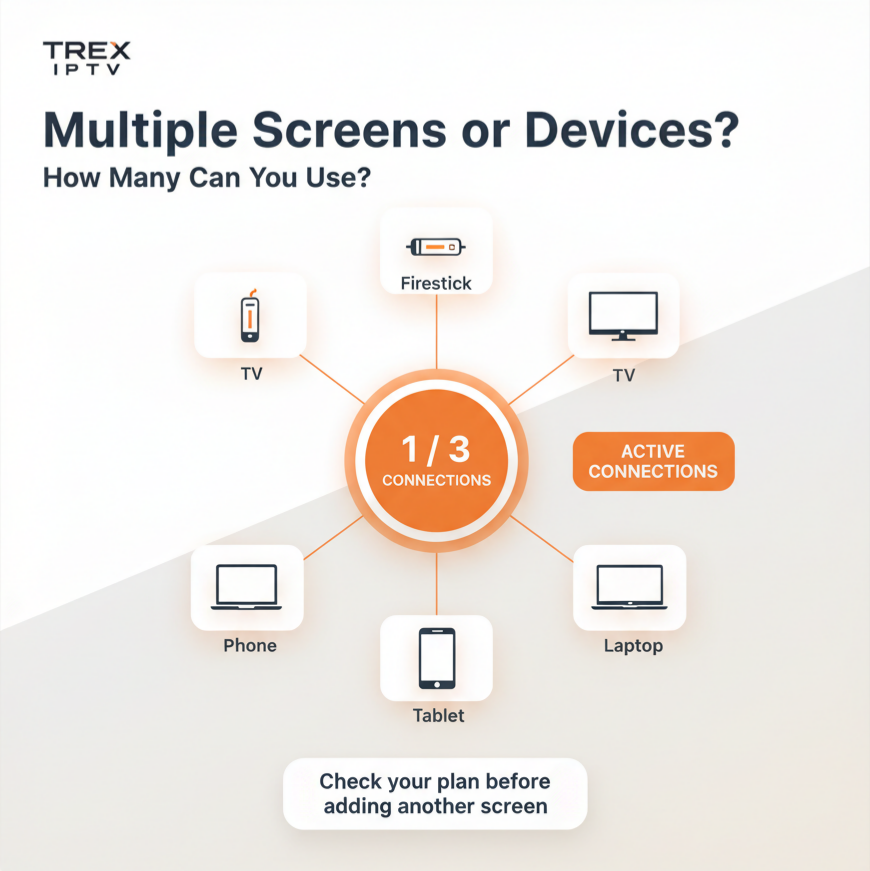
If your subscription has a connection limit, make sure another device is not using the same account at the same time. Learn how limits work in our Trex IPTV multiple screens guide.

  • A forgotten phone, TV, Firestick or Android box may still have an active session.
  • Connection limits can be enforced at the server, so an additional stream may fail even when the app looks normal.
  • Confirm how many simultaneous connections are included with your plan.
15
Fix 15

Contact Support if Everything Else Works

If your internet is stable, other streaming apps work, your device is performing normally, and multiple Trex channels still buffer, the issue may be outside your home setup.

  • Device model
  • IPTV player
  • Channel name
  • Approximate time of buffering
  • Whether all channels or only some channels are affected
  • Whether VOD also buffers
  • Whether VPN is enabled
  • Whether other streaming services work normally
Tip: Give support useful details instead of simply saying “Trex is buffering.”

What If Trex IPTV Buffers Only on One Device?

Test the same account on another compatible device. For example, if Trex buffers on your Firestick but works normally on another device using the same network, investigate the Firestick, IPTV app, cache or playback settings.

If it buffers on every device, the problem is less likely to be limited to one device. You can also compare device setups in the multi-device Trex IPTV installation guide.

What If Trex IPTV Buffers During Live Sports?

Live sports can expose streaming problems more quickly because many people watch the same event at the same time. Test another channel and compare normal live TV with the sports stream. If ordinary channels work while one major event constantly buffers, the issue may be related to that particular stream source or service capacity rather than your entire internet connection.

When Should You Stop Changing Settings?

If you have already tested the following and the same problem continues, stop changing random settings:

Ethernet
Another device
Another IPTV player
VPN on and off
Several channels
Live TV and VOD
Different times of day

At that point, collect the details and contact Trex IPTV support. Repeatedly changing decoder, buffer, and network settings can make troubleshooting harder because you no longer know which change caused the result.

Final Checklist

When Trex IPTV keeps buffering, work through these 15 checks:

Test internet stability
Restart the router
Try Ethernet
Reduce network traffic
Restart the device
Clear app cache
Test another IPTV player
Check TiviMate settings
Test VPN on and off
Try another VPN server
Test multiple channels
Compare live TV and VOD
Check evening-only buffering
Check simultaneous connections
Contact support with detailed information

?Frequently Asked Questions

Still stuck with freezing streams? These answers cover the most common buffering questions.

Keep Learning
Browse all IPTV guides

Still Buffering After These Fixes?

Work through the checklist above, then share device, player, channel, and timing details with support. Browse more help in the Trex IPTV blog or review Trex IPTV subscription plans.

Only use IPTV services and content that you are legally authorised to access in your location.

Chat with us